Monitor Test and Dead Pixel Check
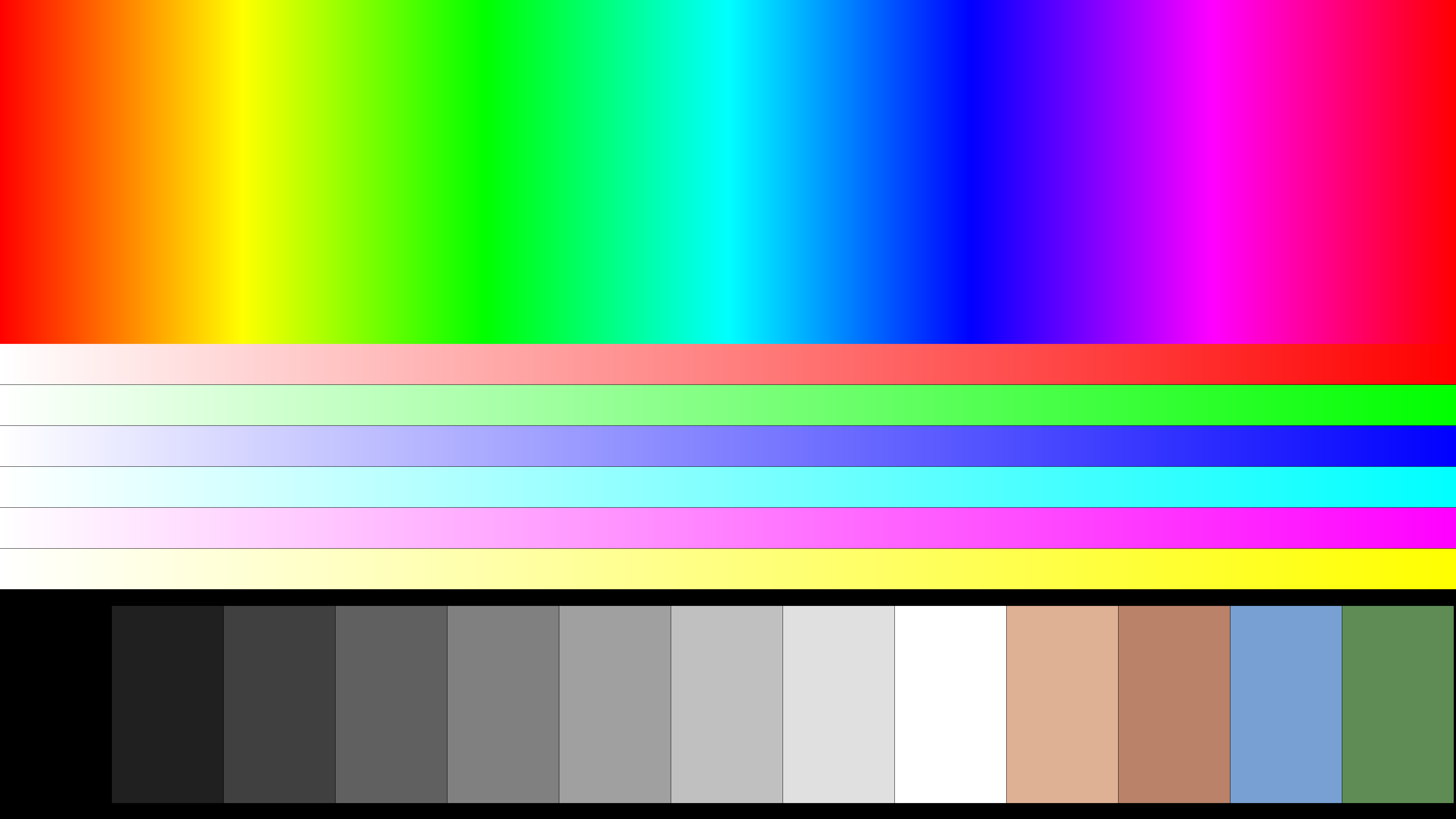
Test images for checking a display: solid colour fills for finding dead and stuck pixels, a grey field for backlight bleed, gradients, a checkerboard and a geometry grid — in 1080p, 1440p and 4K

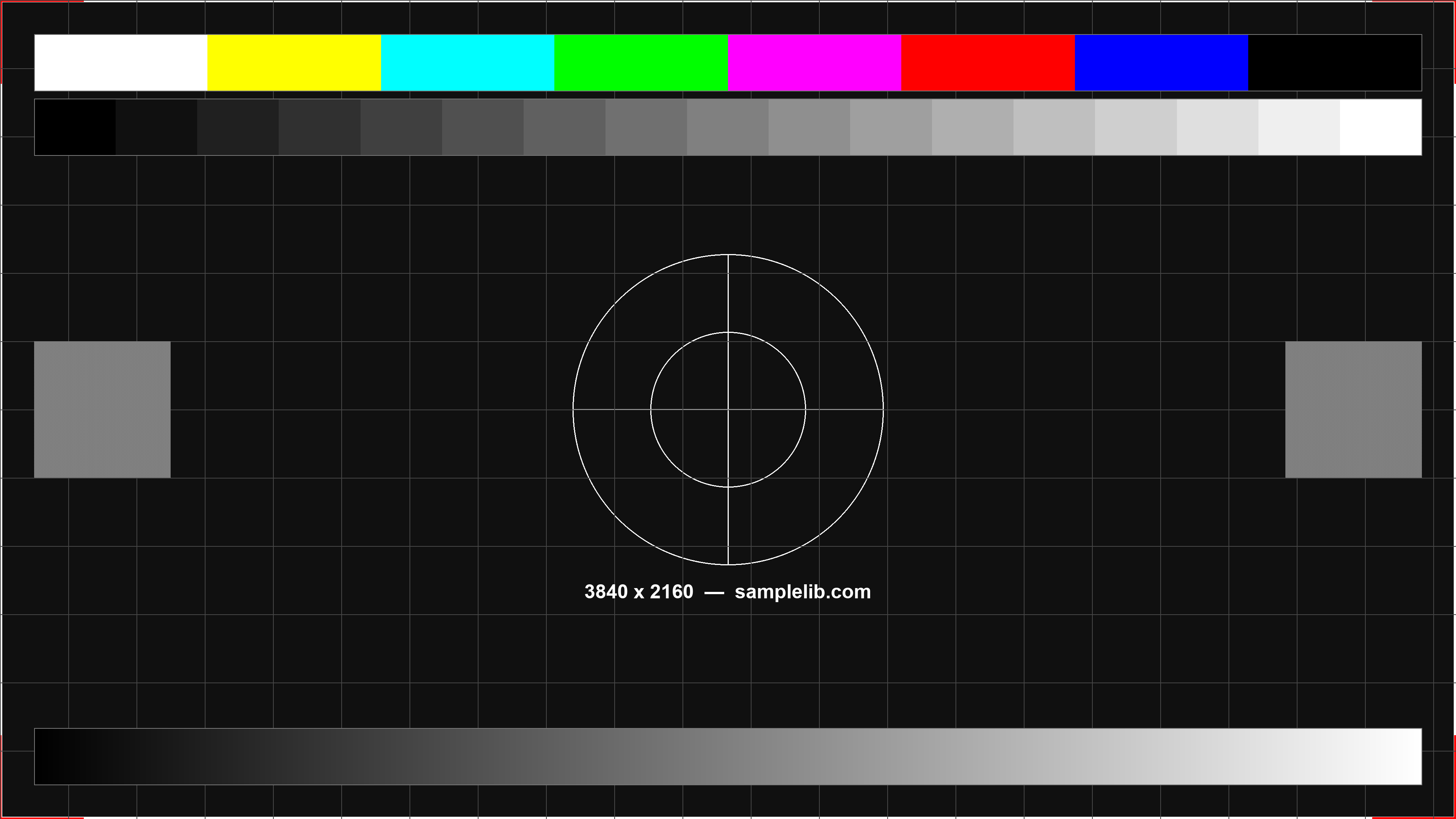
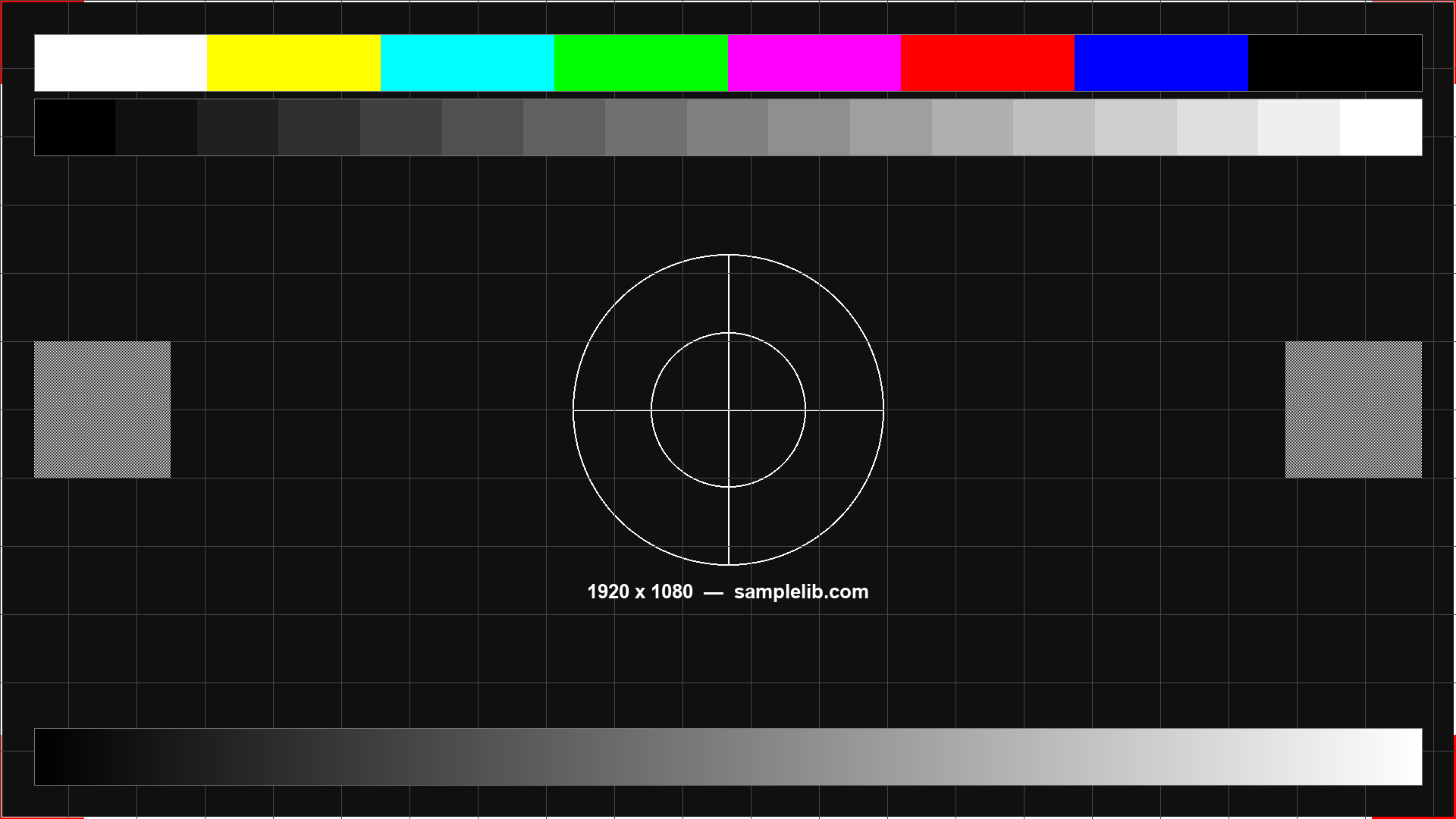




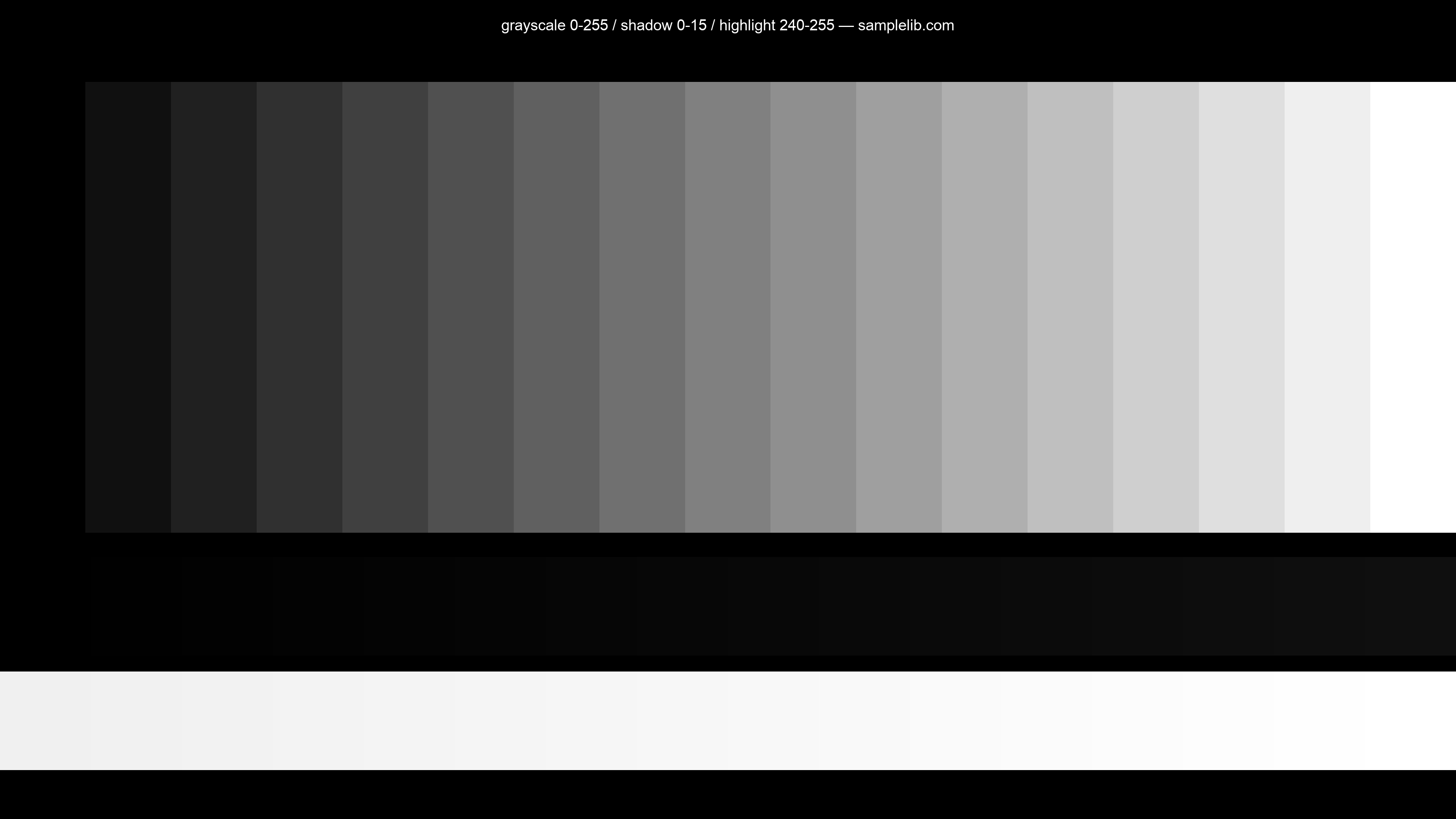
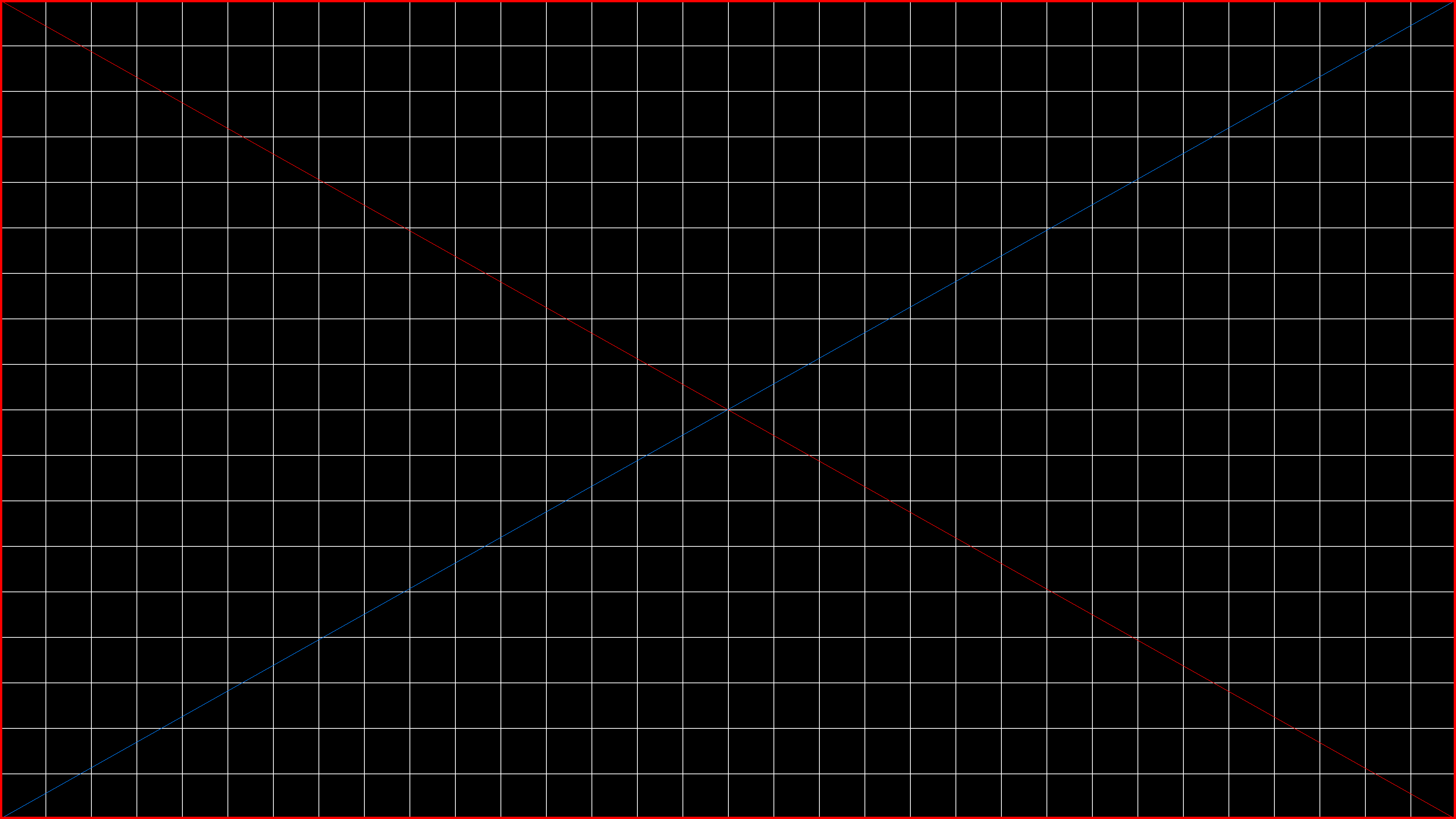

🖥️ Test your screen online
The same frames without downloading: click or use the arrow keys for the next one, Esc to exit
🧠 What a screen test shows
A dead pixel never lights up at all — you see it as a dark dot on a white field. A stuck pixel is the opposite: it always glows in one colour and stands out on black; sometimes it recovers after cycling through the colours. A black field also reveals backlight bleed along the edges, and a grey one shows uniformity problems and patches. On the gradient look for hard steps instead of a smooth ramp, on the grid — blur and clipped frame edges.
Look from 30–50 cm at a clean screen: dust and smudges are easy to mistake for a dead pixel. A black frame shows stuck dots and edge bleed, a white one shows dead pixels, and red, green and blue expose a pixel with one failed subpixel.
When you need this: checking a new monitor, laptop or TV in the shop, buying used gear, a warranty dispute (manufacturers allow a certain number of defective pixels), setting up a second display, and testing a cable or adapter after a resolution change.